How to Make Stickers on PicsArt
How to Make Stickers on PicsArt (The Complete Guide You Actually Need)
The PicsArt app is not just for basic photo filters it is the ultimate sticker maker for crafting bespoke assets. We well do the sticker creation process, showing you how to turn any photograph into professional asset. You can make transparent PNGs and designing incredible custom stickers.
Why Making Custom Stickers
Creating custom stickers is crucial for effective personal branding and for you social media posts. These unique digital stickers act like your personalized signature across platforms, making your Instagram story and edits instantly recognized to your audience. Moreover, designing your own unique PicsArt stickers significantly enhances communication with friends, turning plain text messages into visually engaging, fun exchanges.
What You Need to Know Before Starting
Before you select a photo, you must know the fundamental necessity of transparent PNGs; quality stickers demand a background free format for proper layering. Ensuring your source image boasts the high image resolution.
Making Stickers on Your Phone (Step by Step)
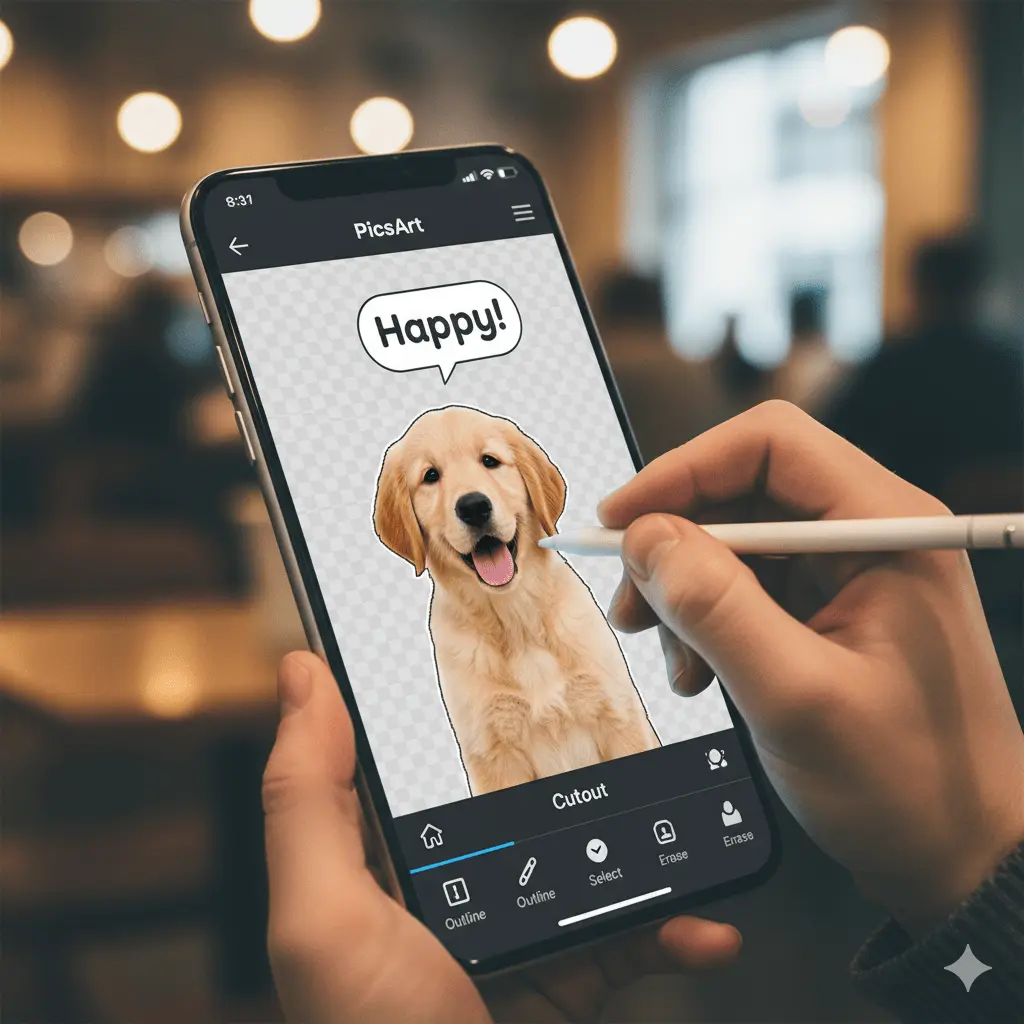
Firstly need to upload photo and navigate directly to the Tools library to explore How to Make Stickers on PicsArt using a mobile device. In next step can put the Cutout tool, which is PicsArt’s dedicated sticker maker interface, using the initial Selection tool for a rough trace.
Creating Stickers on PC or Web Browser
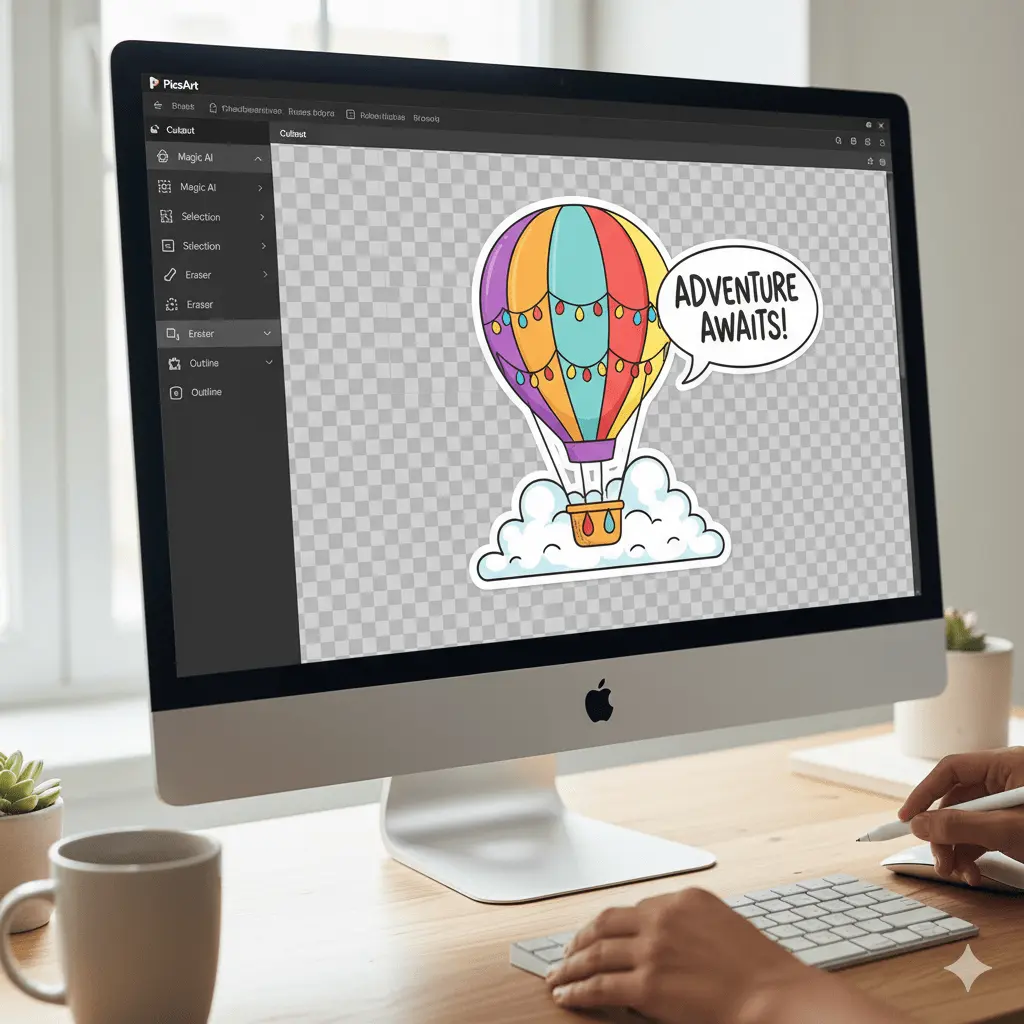
While making sticker in the Web version on PicsArt. You will find the process utiliz the similar logic, often relying on a powerful one click Background remover for rapid results. This method is particularly useful when you need to download and export the final transparent image file directly to your PC devices.
Different Types of Stickers You Can Make
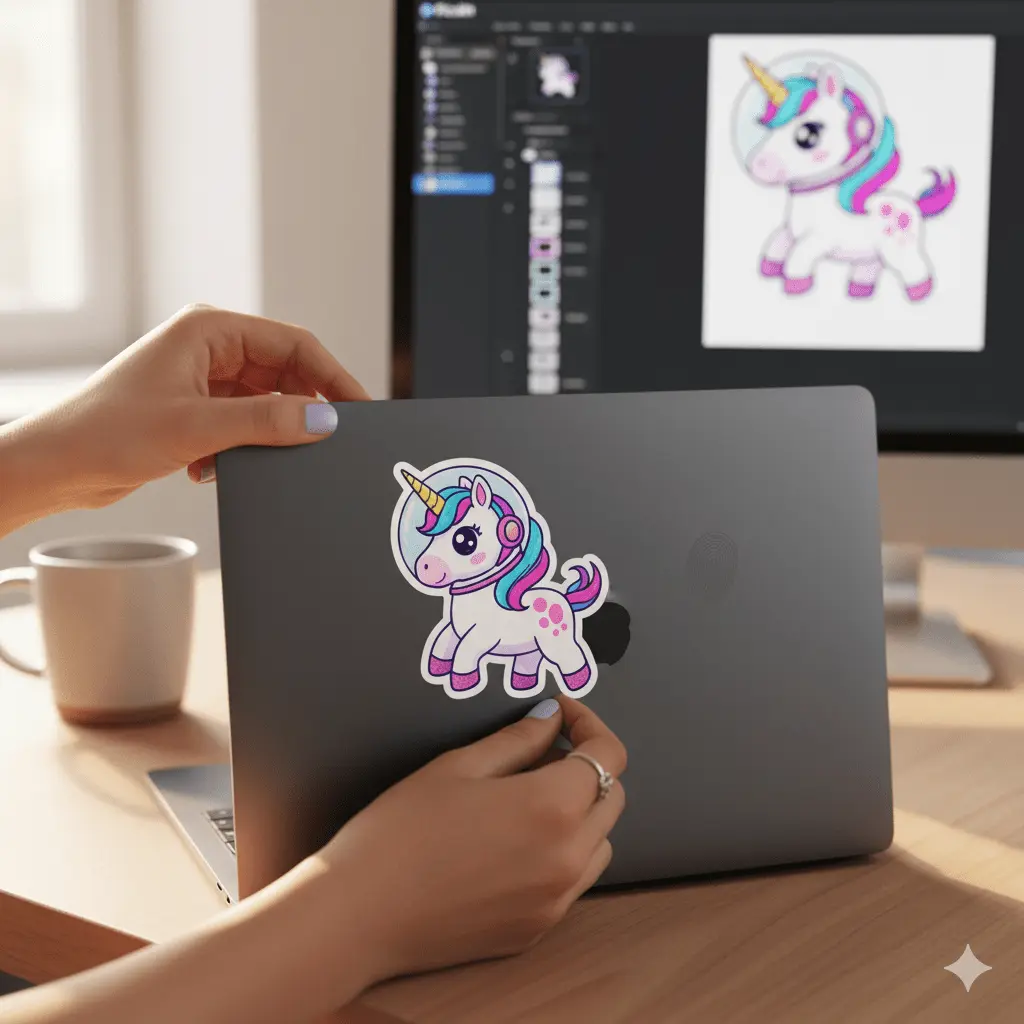
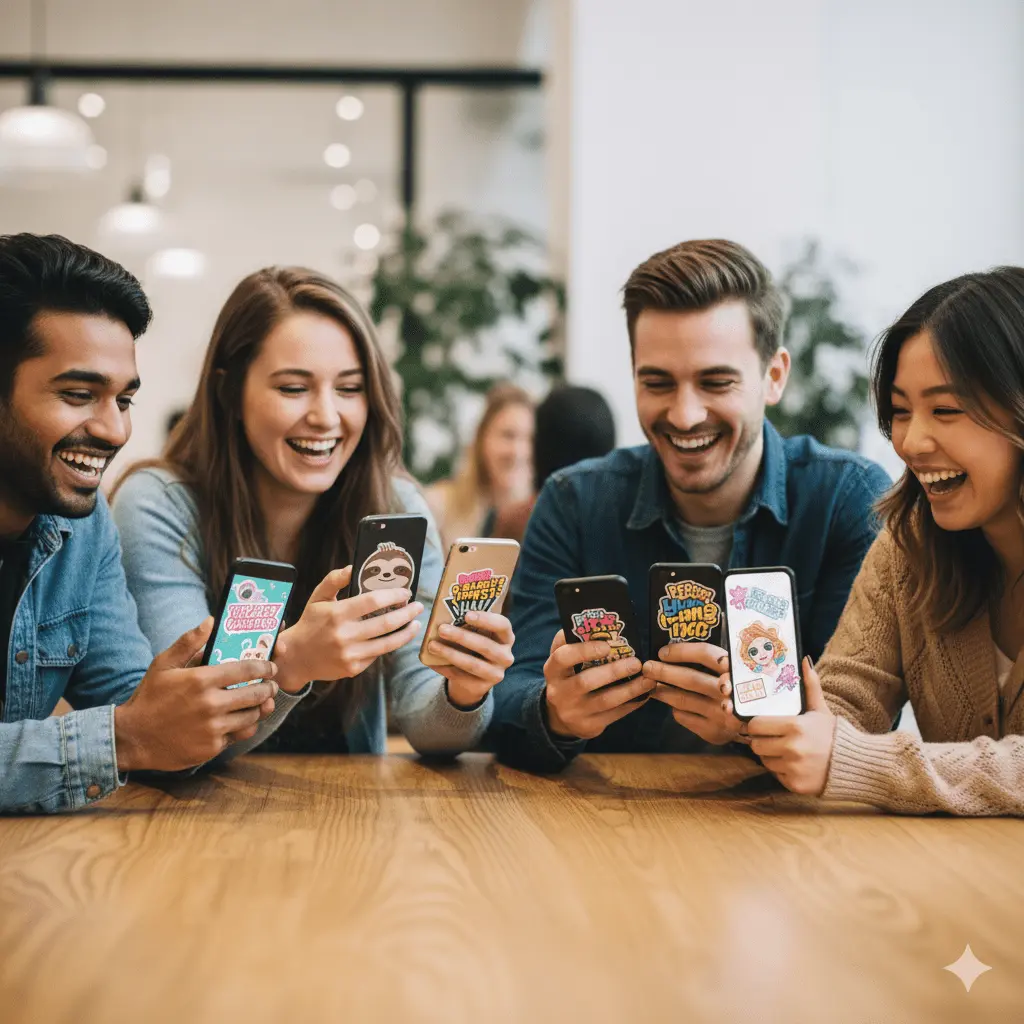
This platform allows you to make various sticker varieties. You have no limit to only static photos consider designing abstract shape stickers or even functional borders using the built-in Drawing tool.
Using the AI Sticker Generator
The AI sticker generator is truly a game changer. it permits you to generate totally unique stickers from scratch using just a descriptive Text prompt after you. Accessing this feature requires a little prompt skill to achieve the desired results.
Making Your Stickers Look Professional
A sticker looks more professional when it includes small but meaning full design detail like a clean white or colored border around the edges. Also by adding a soft drop shadow makes a big difference. These simple finishing touches can make nice look.
| Feature | PicsArt Free Version | PicsArt Gold Subscription |
| Basic Sticker Creation | Yes, full access | Yes, full access |
| Remove background tool | Limited usage | Unlimited usage |
| PicsArt sticker library | Access to free collection | Access to all Premium & Aesthetic stickers |
| AI Sticker Generator | Limited or no access | Full access |
| Advanced Editing tools | Limited filters and effects | Full library of advanced features |
Saving and Actually Using Your Stickers
Once you are happy with the sticker design, the next important step is saving it in proper way. Choose the Save sticker option to add it to your personal drive. If you plan to use the sticker outside PicsArt, can export it as a PNG file to keep the transparent background and best quality.
When Things Don’t Work as per plan
When things do not go as per plan, If your sticker looks blurry or pixelated, it usually means the original image was not high enough in resolution. Try starting with a clearer, higher-quality photo. And if you notice a white outline around your cutout, just open the Cutout tool again and use the manual Eraser to clean up the edges. A few quick adjustments can make your sticker look sharp and polished..